
Stop Wasting Your Fast USB Ports: The Science of Peripherals and I/O Topology

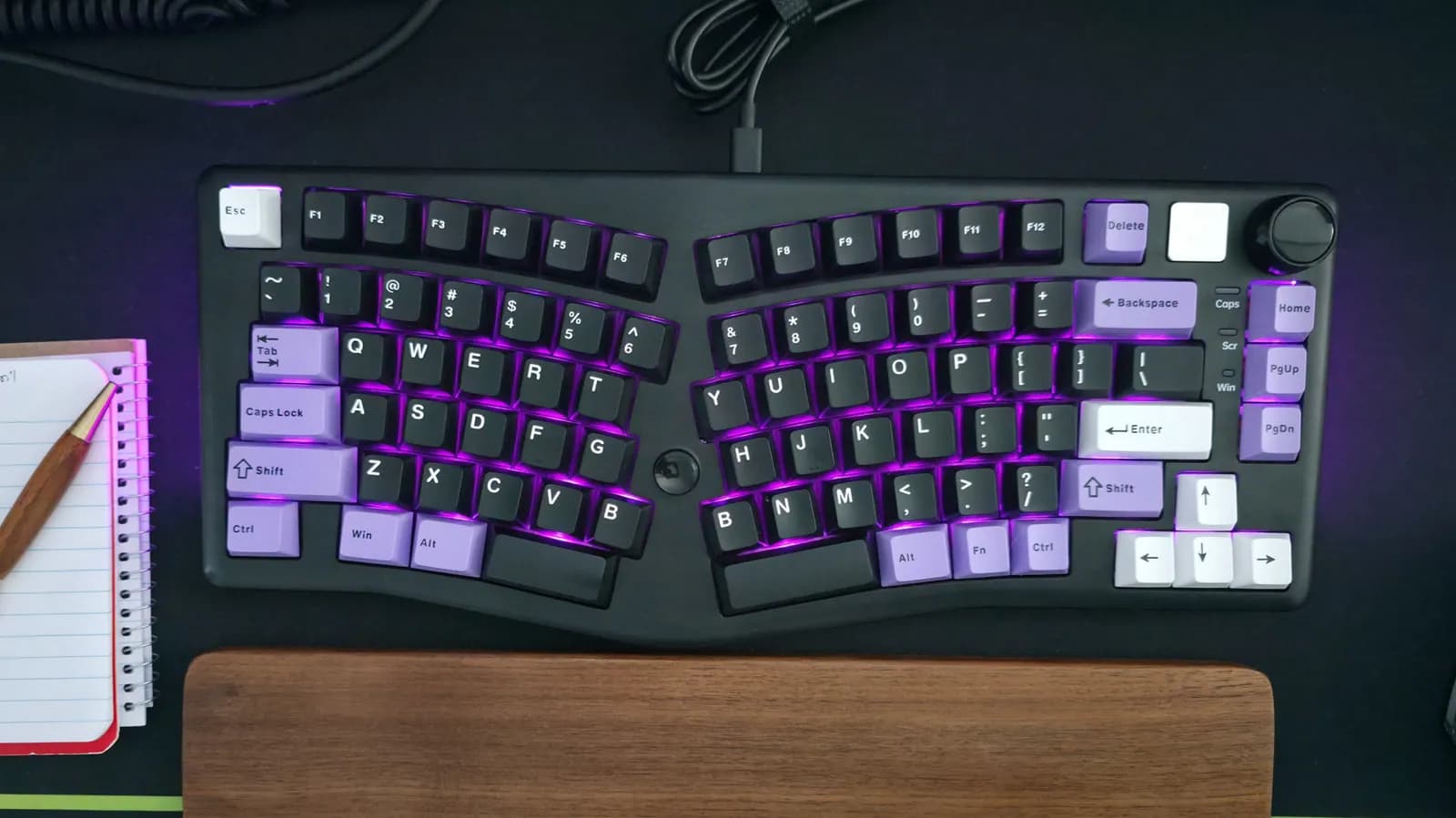
The Unseen Bottleneck on Your Desk
Look at the back of any modern motherboard or the side of a high-end laptop, and you will see an array of USB ports. They come in different shapes, sizes, and colors: black, blue, red, teal, Type-A, and Type-C. For most users, and even many software developers, these ports are treated as interchangeable. When setting up a workstation, the natural inclination is to plug the keyboard and mouse into the first available slots, often choosing the most convenient or closest ports.
However, this casual approach to I/O management can quietly degrade your system's performance. By plugging low-demand input devices into high-speed ports, you might be wasting precious bandwidth, starving data-hungry peripherals, or even introducing latency and interference into your development environment. Optimizing your USB topology is not just about keeping cables tidy; it is about understanding how data flows through your motherboard's architecture to ensure maximum efficiency.
Decoding the USB Standard Chaos
To understand why port selection matters, we must first look at the confusing evolution of the USB standard. Over the last two decades, USB has evolved from a simple interface for low-speed peripherals into a high-bandwidth pipeline capable of driving external displays, graphics cards, and ultra-fast storage arrays. Along the way, the naming conventions have become notoriously convoluted.
USB 2.0, typically color-coded black or white, offers a maximum theoretical transfer rate of 480 Mbps. Then came USB 3.0, which bumped speeds to 5 Gbps and introduced the familiar blue ports. This standard was later rebranded as USB 3.1 Gen 1, and eventually USB 3.2 Gen 1. The faster 10 Gbps ports (often red, teal, or yellow) are known as USB 3.1 Gen 2 or USB 3.2 Gen 2. Today, we also have USB 3.2 Gen 2x2 (20 Gbps) and USB4 (up to 40 Gbps), which primarily utilize the Type-C physical connector. Each generation offers a massive leap in bandwidth, but only if the connected device can actually use it.
Bandwidth vs. Latency: What Peripherals Actually Need
A common misconception is that a faster USB port will make your mouse or keyboard more responsive. In reality, input devices have incredibly modest data requirements. A standard keyboard sends tiny packets of data only when a key is pressed or released. Even a high-performance gaming mouse polling at 1,000 Hz (sending updates 1,000 times per second) only generates a data stream of about 64 Kbps to 128 Kbps. Even the newest 8,000 Hz polling rate mice require less than 2 Mbps of bandwidth.
Plugging a device that requires 0.1 Mbps of bandwidth into a 10 Gbps USB 3.2 Gen 2 port is the digital equivalent of driving a single golf cart down an eight-lane highway. The extra bandwidth does not reduce latency or make the cursor move faster. USB latency is governed by polling rates and controller processing time, not raw bandwidth. Therefore, your mouse and keyboard are perfectly suited for the oldest, slowest ports on your machine: USB 2.0.
Under the Hood: Host Controllers and Shared Lanes
To understand the real danger of poor port allocation, we have to look beneath the motherboard's surface. Your computer does not have a dedicated pipeline for every single physical USB port. Instead, ports are grouped together and routed through USB Host Controllers. These controllers are connected to the system via PCIe lanes, either directly to the CPU or through the motherboard's chipset.
When you plug multiple devices into ports that share a single host controller, they must share the available bandwidth and processing queue. If you plug a high-speed external NVMe SSD and a USB mouse into ports connected to the same controller, the massive data transfer from the SSD can saturate the controller. This saturation can lead to packet loss, micro-stutters in your mouse movement, or even temporary disconnects of your peripherals. By relegating your mouse and keyboard to dedicated USB 2.0 controllers, you isolate them from the high-traffic lanes used by your storage and media devices.
Prioritizing Your High-Demand Workstation Devices
If keyboards and mice belong in the slowest ports, what should occupy your high-speed USB 3.x and USB4 ports? Your workstation likely features several devices that are constantly starved for bandwidth. Identifying these devices is the key to mapping your I/O topology effectively.
- External Storage: Solid-state drives (SSDs) and RAID arrays require as much bandwidth as you can give them. A modern external NVMe drive can easily saturate a 10 Gbps port, making USB 3.2 Gen 2 or USB4 mandatory for optimal read/write speeds.
- Capture Cards and Webcams: High-definition webcams, especially those streaming uncompressed 4K video, require massive, uninterrupted data streams. Running these on shared or slow controllers will result in dropped frames and audio desync.
- Audio Interfaces and DACs: While USB Digital-to-Analog Converters (DACs) do not require massive bandwidth, they are highly sensitive to electrical noise and latency jitter. They should ideally have a dedicated controller path to prevent audio popping and latency.
The 2.4GHz Wireless Interference Gotcha
For developers and power users who prefer wireless peripherals, there is an additional, highly technical reason to avoid USB 3.0 ports for your input devices. The USB 3.0 (and higher) data transmission spectrum overlaps directly with the 2.4 GHz radio frequency band. This overlap causes electromagnetic radiation to leak from the ports and connectors of USB 3.0 devices.
If you plug a wireless mouse or keyboard dongle directly into a USB 3.0 port, or even right next to an active USB 3.0 device (like an external hard drive), the resulting interference can cause lag, missed keystrokes, and erratic cursor behavior. The industry-standard solution is to plug wireless receivers into dedicated USB 2.0 ports. If your computer only has USB 3.0 ports, using a short USB 2.0 extension cable to move the wireless receiver away from the physical chassis can completely resolve the interference.
A Developer's Guide to Port Mapping
For software developers, system administrators, and hardware engineers, proper port mapping is also a debugging safeguard. When writing code that interfaces with hardware—such as flashing microcontrollers, debugging mobile devices, or testing USB-based sensors—unstable USB connections can lead to failed builds, corrupted firmware, or misleading error logs.
By mapping your workstation's ports, you can ensure that your debugging targets have dedicated, high-speed pipelines directly to the CPU, while your daily input devices run quietly on the chipset-routed USB 2.0 bus. Many advanced motherboards provide block diagrams in their manuals, showing exactly which ports connect to the CPU and which go through the chipset. Taking ten minutes to study this diagram and plug your devices in strategically can eliminate a whole class of intermittent, hard-to-diagnose hardware bugs.
Optimizing Your Setup for the Long Haul
In the grand scheme of computing, plugging a keyboard into a fast port will not break your system, but it represents a missed opportunity for optimization. As our workstations become increasingly complex—filled with high-res cameras, external storage, audio gear, and development boards—managing our physical I/O becomes just as important as managing our software processes.
The rule of thumb is simple: save your fastest, most advanced ports for the devices that actually push data, and relegate your input devices to the slower, legacy ports. By doing so, you protect your system from latency spikes, prevent wireless interference, and ensure that when you need to transfer a massive database or compile code to an external drive, your hardware is running at its absolute limit.
Source: engadget.com